Modify
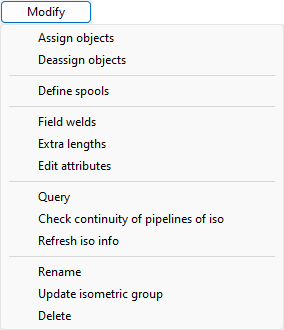
In the Piping Isometrics dialog, the Modify menu contains commands for managing the selected isometric. The menu is not available if there are no isometrics in the list.
Assign objects
You can assign objects to the selected isometric group. All the added objects will be directly linked to the isometric group.
You can use this command in these situations:
-
You have created an isometric group by picking objects from several systems.
-
You have created a pipeline isometric and you want to assign objects from other pipelines to the isometric group.
Deassign objects
You can unassign objects from the isometric group. Rest of the objects will be directly linked to the isometric group if any objects are unassigned. If you have created a pipeline isometric group and you have unassigned objects from it, Nr Items will be changed from “Pipeline” to the number of piping parts.
Note: Project administrator can prevent objects from being exported to isometric drawings by setting the attribute "No export to isometric drawing" (Ine) to "Yes" in the Dimension Table.
Define spools
This command opens the Define spools dialog where you can manage the pipe spools of the selected isometric.
Note: You cannot use this command if you are using the Pipe Spools tab of Plant Modeller to manage pipe spools.
Field welds
This command opens a Field Welds of <isometric> view where you can add or remove field weld by selecting a point in a model object that belongs to the active isometric group.


If you have selection to generate spools, you add field welds to the active spool.
Extra lengths
This command opens a Extra Lengths of <isometric> view where you can add or remove extra length by selecting a point in a model object that belongs to the active isometric group. This allows the extra length to be included in the cut length of straight pipes when material lists are generated from the isometric.

If you have selection to generate spools, you add extra lengths to the active spool.
Edit attributes
You can edit the attributes assigned to isometric drawings. The attribute to edit must be assigned to the class Isometrics in Manage COS > Object Types.
See also Attributes.
Query
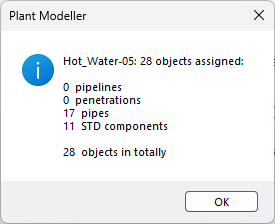
This command lists the contents of the isometric group.
Check continuity of pipelines of iso
This command checks whether the pipelines in the isometric are continuous and displays the results in the Continuity Check Results dialog.
Continuity breaks may cause problems when the Piping Isometrics & Spools application is creating drawings.
Refresh iso info
This command updates the list of piping isometrics. You may have to perform this to see changes that other users have done.
Rename
You can rename the selected isometric drawing. The isometric group is automatically renamed accordingly.
Update isometric group
You can update the contents of isometric groups that have been created using the command Create isometrics via containment, system and pipeline.
Delete
You can delete the selected isometric group and isometric drawing. Also the spools that are defined in the isometric group are removed.
The custom name generation script is informed about the deletions. Isometric drawings have to be checked in so that they can be deleted.
If you delete an isometric drawing in Piping Isometrics & Spools, the isometric group stays unchanged.
Note: To delete multiple isometrics, see Delete isometrics.